
Resources·Using Planning Partner
Make Your First Lesson in Planning Partner: A 5-Minute Quickstart
A step-by-step walkthrough of your first lesson in Planning Partner — the brief, the generation stages, the editor, and export — with screenshots of each step.
What does it take to make your first lesson?
One brief — a lesson name, grade, subject, duration, and a one-sentence objective — and about two minutes of generation time. Planning Partner turns that brief into a complete, timed, editable lesson with teacher notes, student materials, and slides. This page walks the whole path once, with screenshots.
Step 1 — Create your account
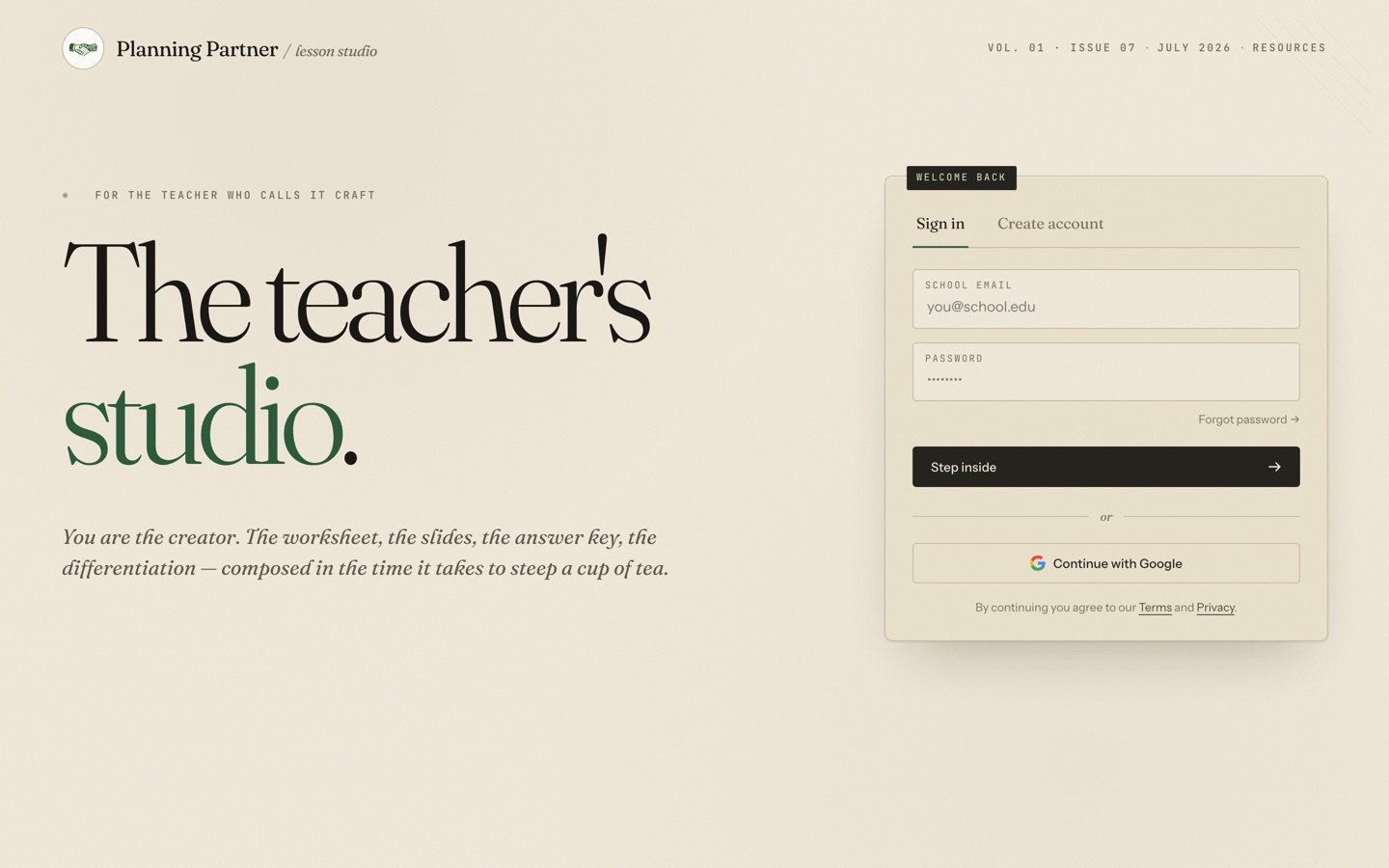
Go to myplanningpartner.ai and create an account with your email or Google. Onboarding asks three quick questions — what you teach, how long a typical class runs, and any context that helps (class composition, curriculum, ELL students). Your answers become defaults, so future lessons start pre-filled.
Step 2 — Fill in the brief
Click New lesson from your library. The brief is the only required step: name the lesson, set the grade and duration, pick a subject, and write one objective — what students will be able to do by the end, verb first.
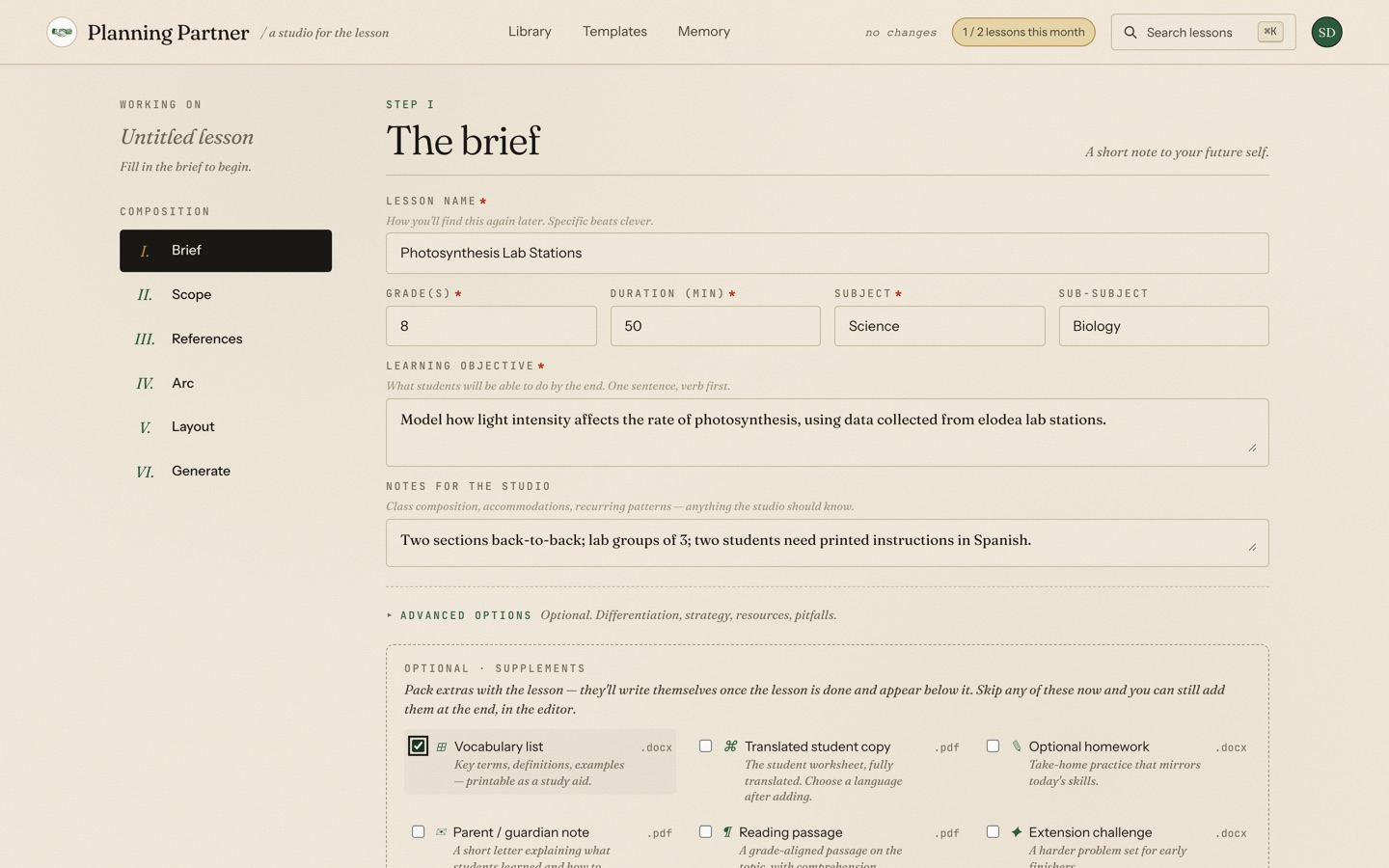
Two fields do more work than they look like they do:
- Learning objective. The whole lesson is built backward from this sentence. "Model how light intensity affects the rate of photosynthesis" produces a lab-shaped lesson; "Describe photosynthesis" produces a worksheet-shaped one. Say what you actually want students doing.
- Notes for the studio. Anything a colleague covering your class would need to know: "lab groups of 3," "two students need printed instructions in Spanish," "we just finished cellular respiration." The studio reads this and plans around it.
Below the brief you can check off supplements — a vocabulary list, a scaffolded worksheet, a translated student copy, quiz files for Blooket or Kahoot. They write themselves after the lesson is done, and you can add any of them later in the editor instead.
Step 3 — Generate
Click Generate lesson. The studio works through six stages — brief, scope, references, arc, layout, and the tiles themselves — and you can watch each section land. If you'd rather not watch, leave: generation continues in the background and the lesson will be waiting in your library.
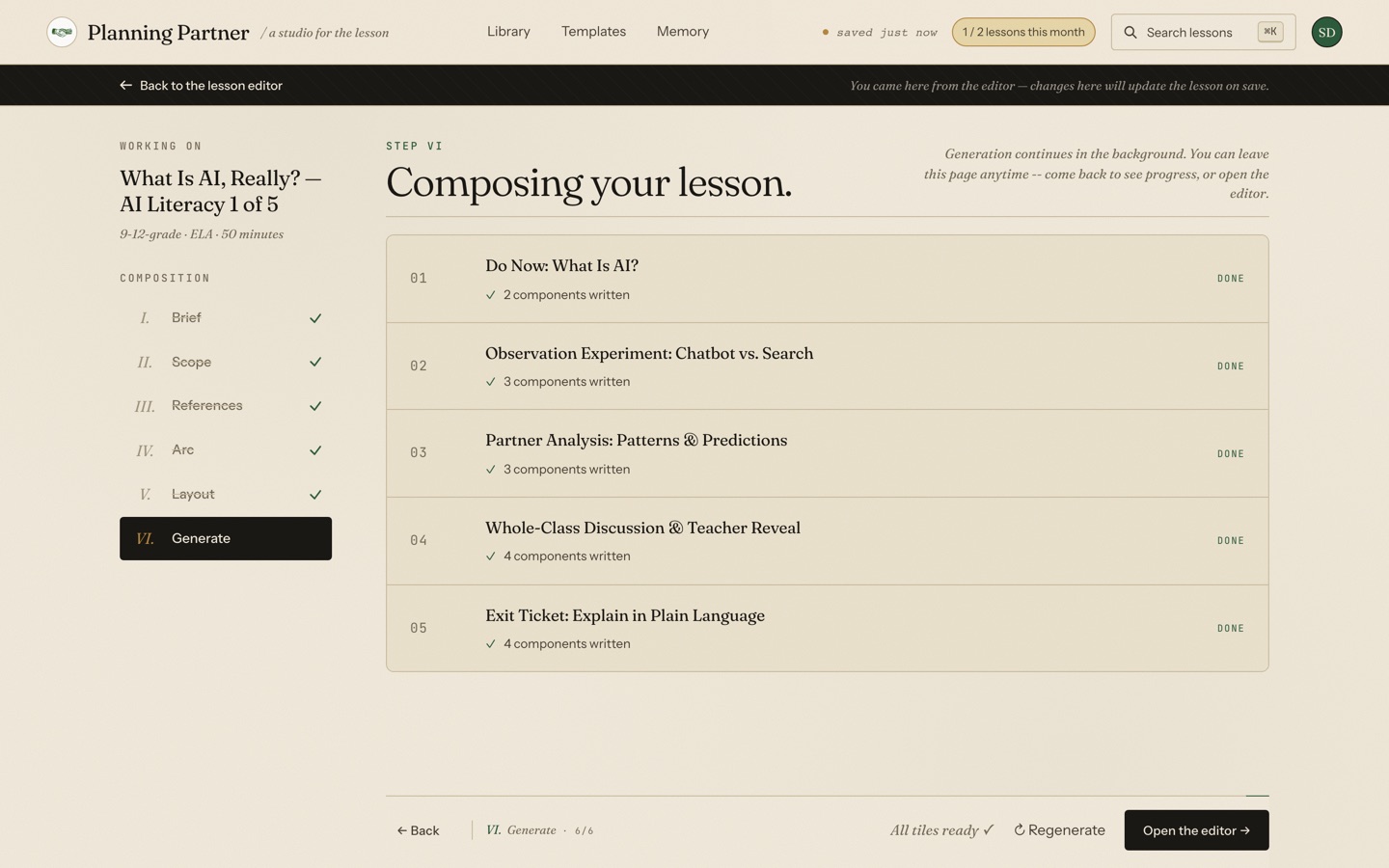
Most lessons finish in one to three minutes. When every tile shows done, click Open the editor.
Step 4 — Review it in the editor
The editor shows the full lesson as a sequence of timed tiles, with a table of contents on the left and a minute count that always adds up to your class period.
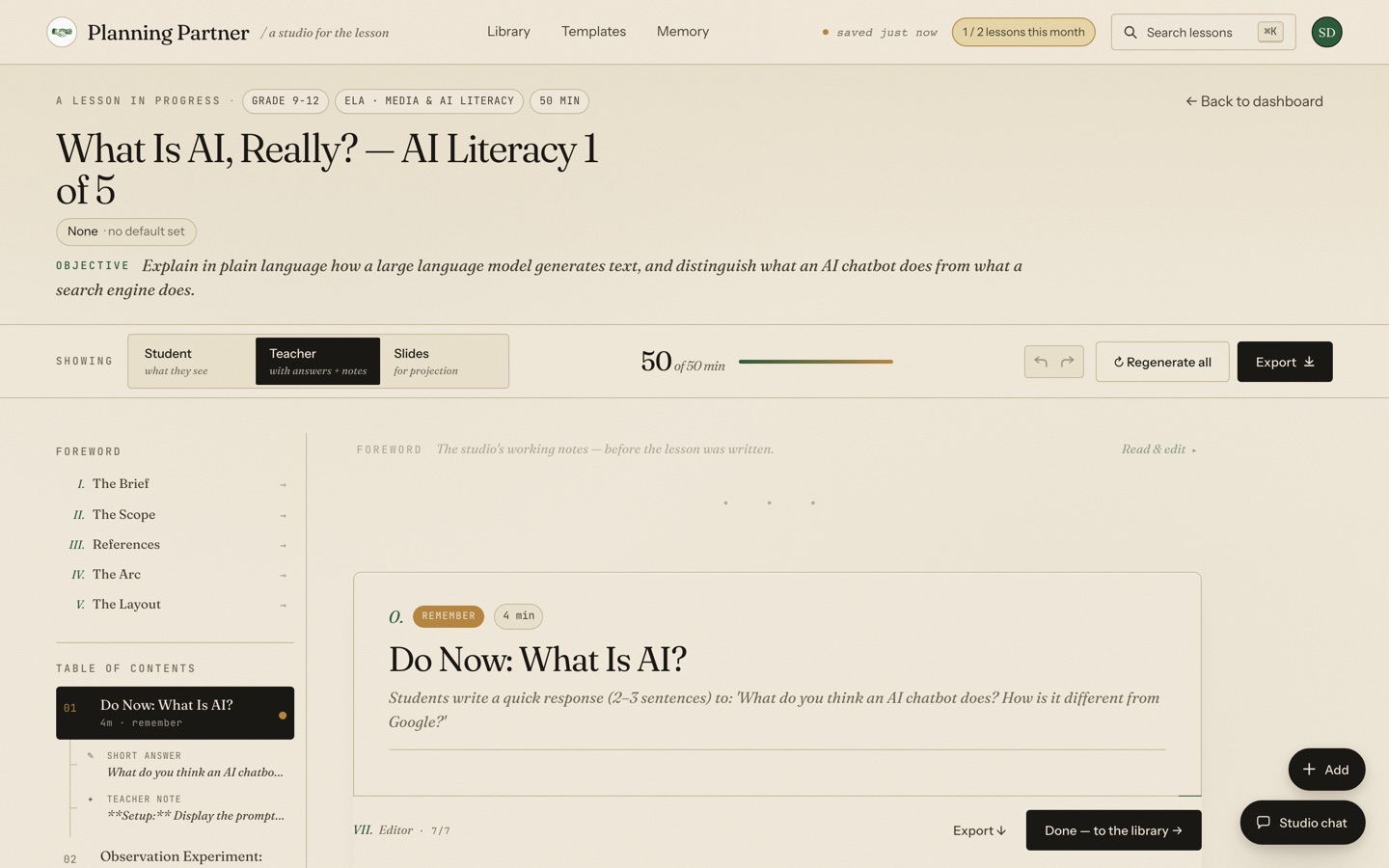
Three things worth trying on your first visit:
- Switch between Student (what they see), Teacher (with answers and notes), and Slides (for projection) at the top — the same lesson, three faces.
- Click into any text to edit it directly. Nothing is locked.
- If a tile misses, regenerate just that tile instead of the whole lesson — the rest stays put.
The lesson autosaves as you work.
Step 5 — Export
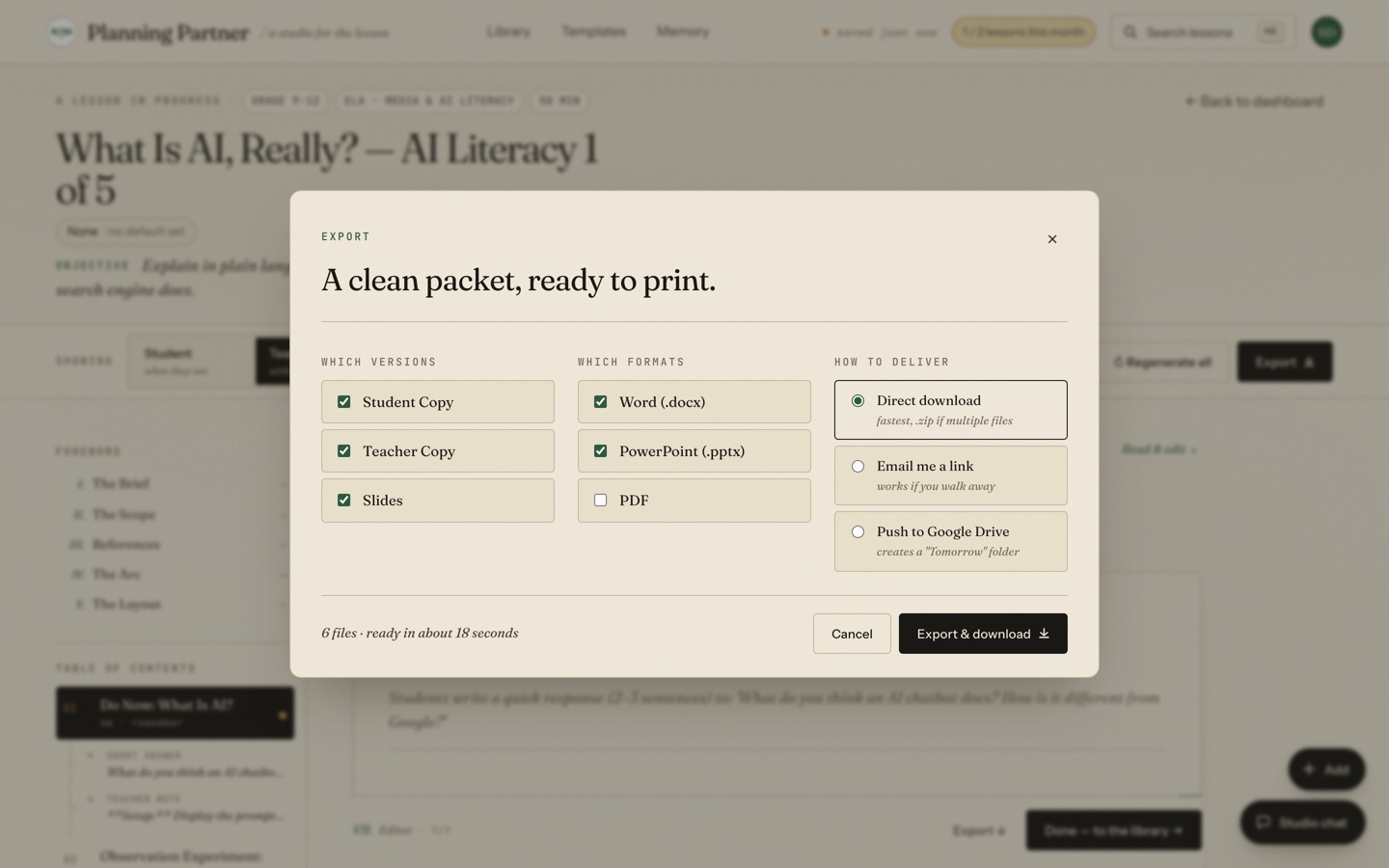
Click Export in the top right. Choose which versions you want (student, teacher, slides), which formats (Word, PowerPoint, PDF), and how to receive them — direct download, an emailed link, or pushed straight into a folder in your Google Drive.
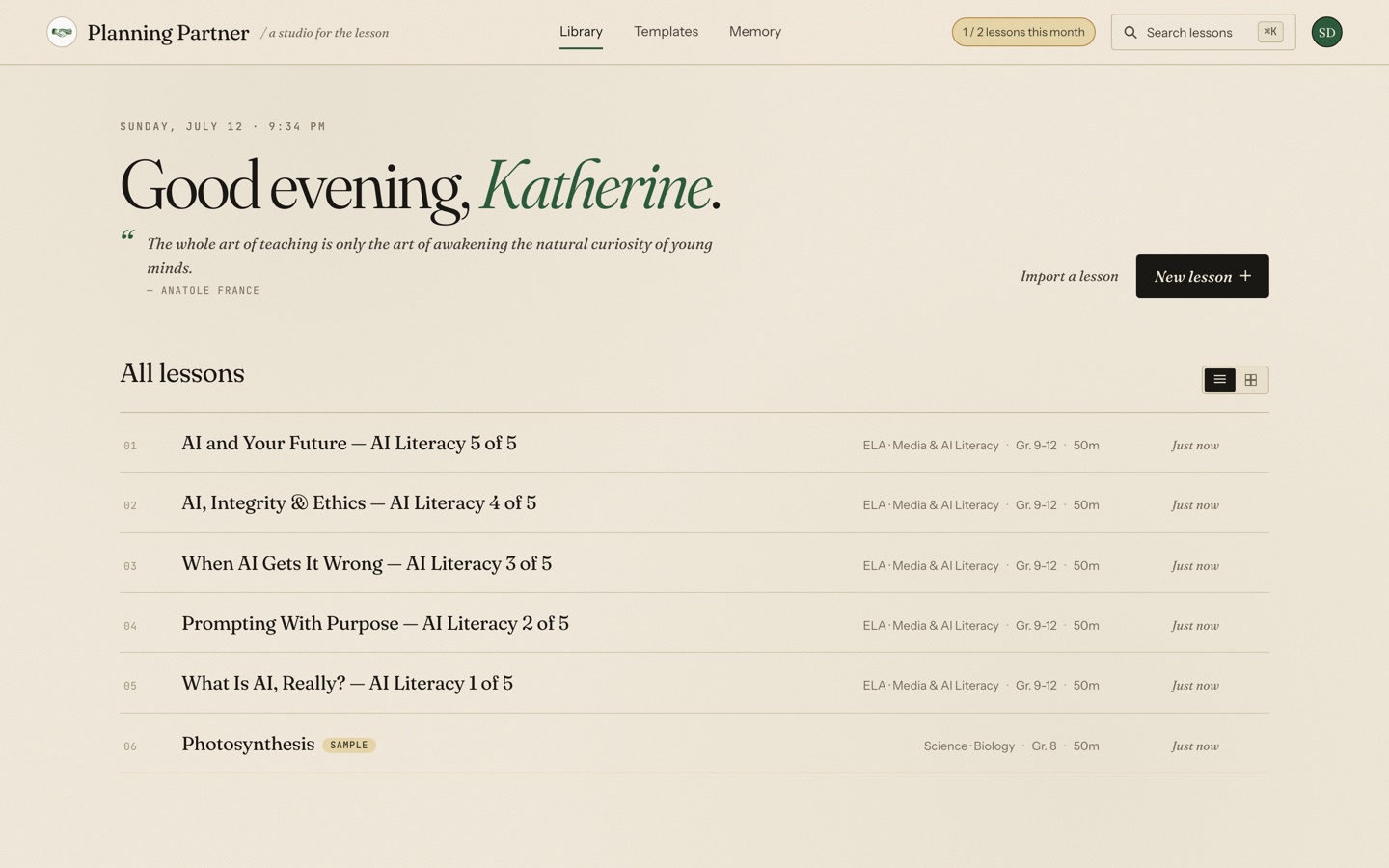
Where lessons live
Every lesson you make lands in your Library, searchable and sortable, so Thursday's lesson is findable in October.
From here, two places to go next: browse the template library patterns you can drop into a lesson, or see what a finished multi-lesson build looks like in the AI literacy mini unit — five complete lessons generated exactly the way this page describes.
Frequently asked questions
How long does it take to generate a lesson in Planning Partner?
Usually one to three minutes from clicking Generate. Content-heavy lessons with several supplements can take a little longer, and generation continues in the background if you navigate away.
Is Planning Partner free to try?
Yes. The free plan includes two lessons per month with no card required, and referrals add bonus lessons. Paid plans remove the monthly cap.
Can I edit the lesson after it's generated?
Everything is editable. The editor lets you rewrite any component, regenerate individual tiles or the whole lesson, and switch between student, teacher, and slides views before exporting.
What formats can I export a lesson to?
Word (.docx), PowerPoint (.pptx), and PDF, in student, teacher, and slides versions — delivered as a direct download, an email link, or pushed straight to Google Drive.
Do I have to fill in every field in the brief?
No. Name, grade, subject, objective, and duration are required; everything else — sub-subject, notes, supplements, advanced options — is optional and can be added later in the editor.
Your next lesson is a sentence away.
Planning Partner drafts standards-aligned, differentiated lessons — then hands you the controls.
Start free